https://askubuntu.com/questions/150100/extracting-embedded-images-from-a-pdf/1187844#1187844
Check you have it (often pre-installed) with
pdftoppm -v
Example you can try without overwriting anything. Open a Terminal in the folder and do (you can, if you want, change your pdf name to imgtesttt.pdf and just copy-paste these 2 commands).
mkdir -p images && pdftoppm -jpeg -jpegopt quality=100 -r 300 imgtesttt.pdf images/pg
(This is the highest quality jpeg available, although you can set from 0 to 100. Jpegs will be around .2 to 2mb with 8.5x11" pages.
or for png
mkdir -p images && pdftoppm -png -r 300 imgtesttt.pdf images/newimagename
(Note that this does two things. First it creates a folder called 'images', so to create a folder called 'book' you need to change that as well as the latter part of the command)
To do several pdfs that are in the same folder
mkdir -p XXXXX && pdftoppm -png -r 300 XXXXX.pdf XXXXX/XXXXX
mkdir -p YYYYY && pdftoppm -png -r 300 YYYYY.pdf YYYYY/YYYYY
A more simple command
mkdir -p images && pdftoppm imgtesttt.pdf images/pg
(where it creates a folder in that folder called ‘images’ and makes a .ppm image file of every page. Where 300 is 300dpi (default is 150dpi if you don't specify)
Note: you can make:
- PPM (default)
- PNG (with -png)
- JPEG (with -jpeg)
- TIFF (with -tiff)
A tiff example:
mkdir -p images && pdftoppm -tiff -r 300 mypdf.pdf images/pg
(300dpi, where each image takes 15-45 seconds. Single core process, so not any faster on faster machines)
A simpler jpeg example:
mkdir -p images && pdftoppm -jpeg -r 300 mypdf.pdf images/pg
I just did png this way:
mkdir -p images && pdftoppm -png -r 300 mypdf.pdf images/pg
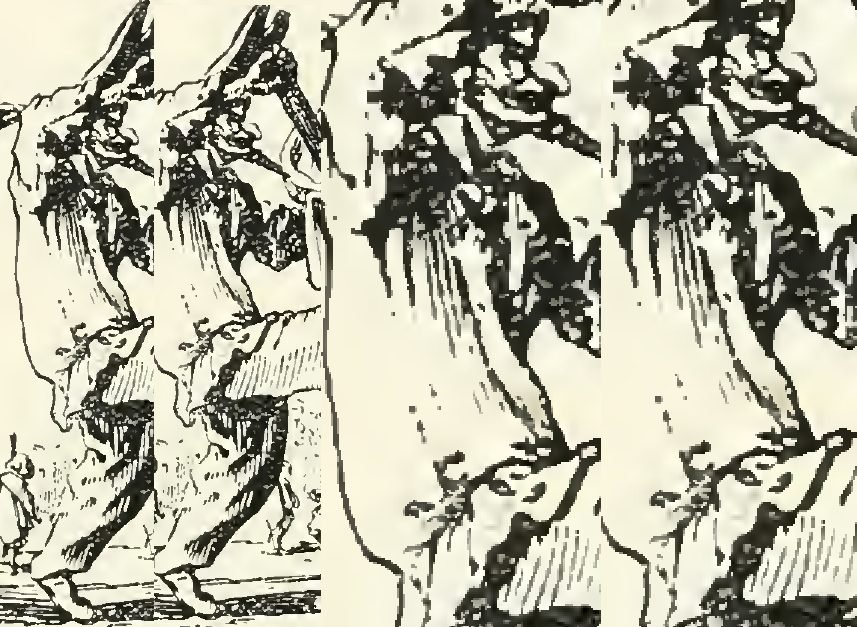
image shows jpeg 300dpi and png 300dpi at 100% and 200%